

Frontend Slides Tutorial: Claude Code Setup
Install the Frontend Slides Skill in Claude Code, create an HTML deck from a sample brief and check the output. Compare the separate native PPTX route.
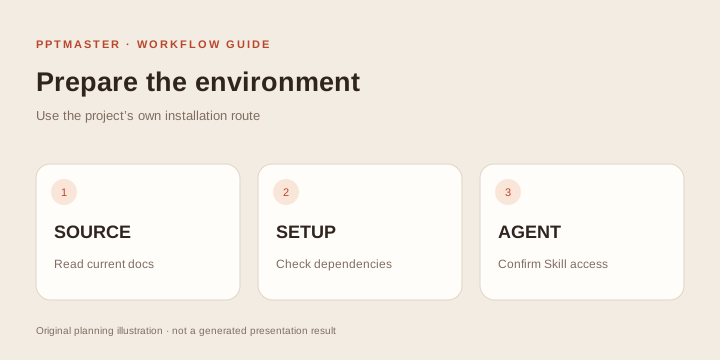
Install a presentation Skill, give it a source brief and inspect the result before sharing it. This PPT Skills tutorial uses Frontend Slides in Claude Code for a concrete HTML exercise. If your recipient needs native PowerPoint objects, follow the separate PPT Master installation tutorial. Use the PPT Skills directory to compare projects and documented output types.
A PPT Skill is usually a set of instructions and supporting files that guides a coding Agent through presentation work. The 227-entry PPT Skills directory also contains slide frameworks, templates, image workflows and multi-skill collections. Their setup and outputs differ. Begin with the file you need to deliver, then choose the project.
This tutorial takes you from a requirement to a small reviewable deck. It does not install all 227 entries at once. The directory helps prepare a choice and a prompt; execution takes place in the selected project's supported environment.
1. Decide what the recipient must do
Ask: Does someone need to edit the result in PowerPoint?
- If yes, start with Editable PPTX. Check that text, data and diagrams remain the kinds of objects you need to edit. A file ending in
.pptxcan still contain full-slide pictures. - If the audience will view a presentation in a browser, start with HTML slides. Check navigation, fonts, assets and offline behavior.
- If both are required, start with Both formats, then inspect each export independently. A good HTML result does not establish PPTX editability.
- If you need a runtime with its own authoring and build process, inspect Frameworks. If you need themes for an existing workflow, inspect Templates.
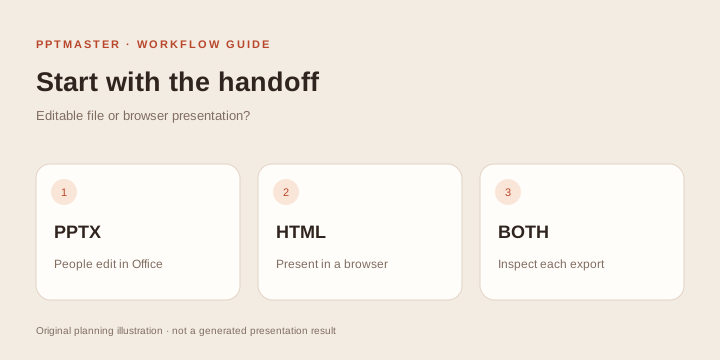
Original workflow illustration. Use the final recipient and editing task to choose the route.
The source snapshot contains 79 PPTX, 83 HTML, 25 dual-format, 12 framework, 8 template, 9 collection and 11 image entries. These are the original source classifications. Our October 18 document review reclassified Frontend Slides Editable as HTML, and PowerPoint Fancy Design, HTML to PPT PDF and TEKION Slide Generator as image workflows. The current filters therefore contain 21 dual-format entries, 100 editable-PPTX candidates and 105 HTML candidates; the last two counts overlap. These are documented classifications, rather than execution tests of every project.
2. Use the directory to narrow the choice
Search a project name, repository or task such as “academic,” “template” or “code.” Then choose a workflow type. Capability checkboxes require positive documentation evidence; combining two checkboxes means an entry must match both.
The capability dataset covers fewer entries than the full registry. A missing result under “Speaker notes,” for example, can mean the project has no recorded evidence for that feature. It does not prove the feature is impossible. Open the selected entry to see whether a capability is documented, explicitly unsupported in the reviewed docs or not documented.
Use name sorting for lookup. Treat star sorting as a dated interest signal: statistics were refreshed upstream on September 4, 2026, and a monorepo's stars can cover a whole collection. Neither stars nor a screenshot measures correctness, editability or performance on your material.
For a first comparison, choose two candidates with the same required deliverable. Read the current README and the relevant SKILL.md or setup guide. Check dependencies, license, accepted source types, output format and how previews are reviewed. The audience guide provides a role-based decision table.
3. Understand the installation method
The directory exposes recorded installation references where the source provides them. Use the current repository instructions as the authority. Do not paste an arbitrary command without checking where it belongs.
| Method | Where it runs | What to verify |
|---|---|---|
| Agent plugin commands | Inside the specifically named Agent | Marketplace, plugin name, namespace and activation |
| Skills CLI | Your terminal | Supported host, install location and which files are fetched |
| Repository clone | Your terminal | Correct folder, dependencies and how the Agent reads the Skill |
| Python workflow | A terminal with the documented Python version | Virtual environment, requirements file and script paths |
| Framework scaffold | Your terminal | Runtime version, project directory, packages and build steps |
| Template repository | Its documented setup environment | Which authoring tool consumes the templates |
Installing an instruction Skill does not automatically install Python packages, browser binaries, fonts or model credentials. A framework initialization command creates a project; it is not equivalent to adding a Skill to an Agent.
If a project asks for a model or image provider, check configuration, data handling and cost before running it. Use a public sample for the first attempt. Keep credentials in the project's documented local configuration, rather than in a prompt or source document.
4. Install Frontend Slides in Claude Code
Before you install
Use an existing Claude Code environment with access to your working folder and its tools. Model access and usage charges belong to your Agent account; installing a Skill does not supply model credits. For this exercise, create a new folder for the source and delivered HTML. The basic HTML authoring route does not require an npm project. Optional conversions and exports have their own requirements.
The directory’s Editorial Forest template previews illustrate an optional template pack for this workflow. They are upstream design references; the commands below install the Skill, not a finished presentation. Ask the Agent to use a supported template and replace its placeholders with your approved source material.
For an HTML presentation, Frontend Slides documents a Claude Code plugin route. Its current README says to submit the following as two separate Claude Code messages, waiting for the first to finish before sending the second:
/plugin marketplace add https://github.com/zarazhangrui/frontend-slides
/plugin install frontend-slides@frontend-slides
These are Agent commands, not shell commands. The documented plugin invocation is:
/frontend-slides:frontend-slides
The standalone manual installation uses a different invocation. Do not substitute one namespace for the other. For another Agent host, follow the repository's own instructions for accessing the core Skill and support files; do not assume a Claude Code command works unchanged elsewhere.
Confirm the installation before supplying real work: submit the invocation above and ask Claude Code to identify the Frontend Slides instructions it loaded. If the command is missing, check whether you used the plugin or manual route, whether installation completed and whether the current session can see the Skill. Do not try unrelated command namespaces until one happens to respond.
For Codex or another coding Agent, the upstream README documents using the core SKILL.md and its support files. Ask that Agent to read the repository and identify the files it actually loaded. This guide's slash commands are specific to Claude Code; a general chat window without file and tool access cannot perform the same exercise.
Provide a small source document and ask for a preview before the full deck. If you choose a style from a project gallery, use its exact style identifier only when that project documents it. A style name from one Skill is not a universal command understood by every project.
For a native PPTX route, follow the separate PPT Master setup and authoring tutorial.
5. Prepare a brief the Agent can act on
The directory's prompt builder inserts your selected project, source or topic and audience. Copy it into the Agent that will execute the workflow. Add the final deliverable and constraints before starting.
For a repeatable exercise, download the fictional project brief, create a docs/ folder in the Agent’s working project and save it as docs/review-brief.md. Ask the Agent to read that file before it writes slides. The interview counts are illustrative, and the limitation must stay with them. Here is a suggested brief:
Use the Frontend Slides Skill for docs/review-brief.md.
Audience: project leads deciding whether to continue the onboarding pilot.
Create three HTML slides: evidence, unresolved questions, proposed decision.
Keep 12 completed interviews separate from 8 interviews still scheduled.
Show that 5 of 12 completed participants needed help; keep the small-sample caveat.
Treat the source's PPTX editing checklist as a separate delivery option;
this exercise requires HTML, not an editable PowerPoint export.
Use a clear speaking-deck layout. Propose the outline and visual previews first.
After I choose a direction, save the final HTML as deliverables/team-review.html.
Keep any required local assets under deliverables/ with relative paths.
Return the file paths, any remote dependencies and the checks you performed.
deliverables/team-review.html is the requested output path for this exercise, rather than an upstream default filename. Ask the Agent to confirm that docs/review-brief.md exists and quote the source heading before it starts. The file contains an optional PPTX acceptance checklist; the prompt explicitly selects HTML for this run. The native PPTX tutorial uses the same source for a different delivery requirement.
For a company template, provide the actual approved template and confirm the selected project's support before authoring. An HTML result can be edited in source, but that does not make it a native editable PowerPoint.
Open the delivered HTML
Open the returned HTML file in your browser. If the package uses local assets or you need an HTTP preview, run this from the working folder containing deliverables/ when Python 3 is available:
python3 -m http.server 8765 --bind 127.0.0.1 --directory deliverables
Open http://127.0.0.1:8765/team-review.html. Keep that terminal running while reviewing; press Ctrl+C to stop it afterward. If the port is in use, choose another free port in both the command and URL. This is a loopback preview, not a public deployment.
Check all three slides, keyboard navigation, the displayed numbers and any images. Resize the browser and look for clipped text. For an offline requirement, disconnect networking and reopen the delivered package; a single HTML file can still reference remote fonts or images. Keep every referenced local asset when sharing the folder. Do not infer offline support from a successful online preview.
6. Run a representative small test
Use a two- or three-page source that includes the content most likely to cause trouble: a long heading, a table, a code block, a chart or a diagram. A cover-only preview is insufficient to test those requirements.
Ask the Agent to confirm it can read the Skill's entry file and the relevant support files. If it starts producing slides without following the selected project, stop the output and point it back to the documented workflow. Avoid compensating by copying instructions from unrelated projects.
Review the first content-slide preview. Check reading order, density and source fidelity. Approve the direction before expanding to the full deck. This bounds the rework if the selected style does not fit your material.
7. Inspect the exported artifact
| Requirement | Practical acceptance check |
|---|---|
| Editable PPTX | Open in the recipient's application; edit a title, table value and relevant diagram or chart |
| Browser deck | Test keyboard navigation, scaling, link behavior and presentation controls |
| Offline delivery | Disconnect the target device and reopen the delivered package; check fonts, images and scripts |
| Notes | Confirm notes are in the final file or documented presenter interface |
| Evidence | Trace significant claims to source passages, units and reporting periods |
| Brand/template | Check the actual master, fonts and layouts, rather than only matching colors |
| Complete handoff | Include source files, assets, output and the instructions needed to revise it |
A preview, a successful export command and a final file each answer different questions. Test the file your recipient will actually open.
Troubleshooting the first attempt
The browser shows 404 or a directory listing: Check the server's --directory path and the filename returned by the Agent. The URL above assumes the file was saved as deliverables/team-review.html.
The command is unknown after installation: Check that both installation messages finished successfully and that you invoked the plugin namespace, or the manual Skill name for that installation route. Reopen the Agent session only if it needs to reload installed Skills.
The Agent cannot find the Skill: Check its installed location, host support and activation syntax. Reopen or refresh the session if the host requires it. Ask the Agent to confirm the exact entry file it read.
A dependency is missing: Use the selected project's requirements and documented working directory. A plugin installation may fetch files without installing their dependencies.
The PPTX looks right but cannot be edited: Inspect whether the slide is a single image. Choose a native-object workflow or revise your requirement. Converting image slides into a .pptx container does not make their text native.
The browser deck fails offline: Check remote fonts, CDN scripts, images and other linked assets in the delivered package. A local preview alone does not prove offline delivery.
The deck invents claims: Narrow the brief, supply the missing material and review the source-to-claim mapping. A different style cannot fix missing evidence.
Use PPT Skills use cases to adapt the process to a concrete project. If your task is a short PDF summary and you prefer a hosted workflow, follow the PPTMaster online tutorial.
Sources and scope
The catalog adapts many-ppt-skills under CC BY 4.0. Installation details were checked against the Frontend Slides README and PPT Master README on October 19, 2026. This article documents setup and review; it does not claim execution or benchmarking of all 227 projects.