

PPT Skills Use Cases: PPTX and HTML Workflows
Explore six PPT Skills use cases for consulting, technical talks, research, team reviews and teaching, with source briefs and output acceptance checks.
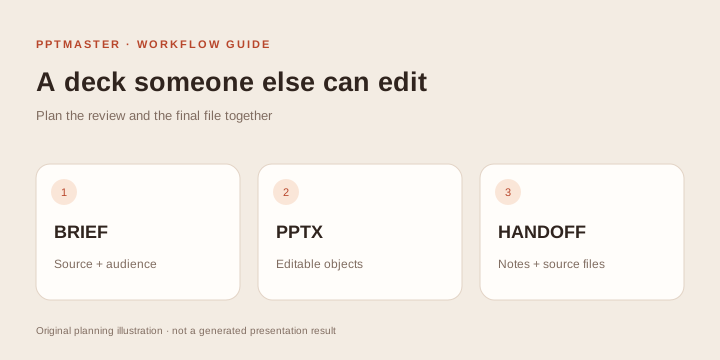
Choose a presentation workflow by what you need to hand over: native PowerPoint objects, a browser talk or both. These six PPT Skills use cases connect a real task to its source material, a small pilot and specific acceptance checks. For example, a client editing a table and a speaker presenting code have different requirements even when both need “slides.”
PPT Skills are most useful when you choose them around a specific handoff: an editable client deck, an HTML technical talk, a classroom explanation or a reusable team presentation. The 227-entry directory helps you find candidates, but the choice still depends on what your source contains and what the final recipient must do.
The scenarios below are original planning examples. Project capabilities are drawn from the registry and linked project documentation, rather than a comparative test of all tools. Follow the PPT Skills tutorial to install the selected workflow and run a small pilot.
Match the task to a first pilot
| Deliverable | Directory starting point | First pilot | Practical setup guide |
|---|---|---|---|
| A colleague must edit PowerPoint objects | Editable PPTX candidates | One title, one data table and one important diagram | PPT Master repository setup |
| A browser talk with a maintained source | HTML candidates | One code or architecture slide on the presentation laptop | Frontend Slides in Claude Code |
| A deck with its own build process | Frameworks | Another maintainer builds it from the source | Chosen project's current setup docs |
| Web viewing plus editable PowerPoint | Both-format candidates | The same content in two separately inspected files | Both documented export paths |
A candidate filter narrows the research; it does not certify a feature or install the project. Check whether your team can run and maintain the workflow before adopting it.
1. A client-editable consulting presentation
Task: Turn an approved discovery report into a deck the client can revise. Required deliverable: Native PPTX, source material and review notes. Primary decision: Can the important objects be edited in the client's application?
Start with the directory's Editable PPTX filter. PPT Master documents native presentation authoring and template/editing workflows; the PPT Master Skill installation guide covers that specific setup. Anthropic's PPTX Skill describes creation and editing of PowerPoint files. These are candidates to inspect, rather than an assertion that either handles every company template.
Prepare the source report, approved template if required, audience, decision and allowed scope of interpretation. Ask for an outline and one difficult content-slide preview before expanding to the entire deck.
Prepare a client-editable presentation from the approved discovery report.
Separate observed problems, evidence and proposed actions.
Use the supplied template only if the workflow supports it.
Keep important text, tables and diagrams editable.
Pilot two representative content slides before creating the full deck.
Acceptance: Open the output in the client's editor. Edit a heading, a data cell and a representative diagram. Check master/layout behavior, font availability, notes and source claims. A PPTX containing images of the slides fails a requirement for editable text and diagrams.
Tradeoff: Native object construction and template conformity need more review than a visual screenshot. If the client must only view the deck, that editing requirement may be unnecessary.
2. A technical talk with code and architecture
Task: Explain an engineering change to a technical audience. Possible deliverable: HTML slides or a developer slide framework, plus a portable fallback. Primary decision: How will you present and distribute the talk?
Use the HTML slides and Frameworks filters. Frontend Slides documents browser-based authoring; Slidev documents a developer-oriented Markdown/Vue workflow. Visual Explainer is another candidate for engineering communication. Check current code, notes and export support individually.
For a step-by-step pilot, follow the Frontend Slides HTML exercise. Supply actual code snippets, a correct architecture description and the change you want the audience to understand. Ask for readable code at the real presentation size, explicit labels and a clear order of explanation. Preserve code indentation and avoid turning implementation caveats into general guarantees.
Acceptance: Test keyboard navigation, code readability, diagram labels and any speaker view. Reopen the delivered package on the presentation laptop. If the venue has unreliable connectivity, disconnect the laptop and check fonts, scripts, images and embedded media. Test a PDF or other fallback separately.
Tradeoff: Frameworks add a runtime and build process. Single-file HTML can simplify delivery, but only an actual offline check establishes that all dependencies are present. Neither route automatically gives the recipient an editable native PowerPoint.
3. A research seminar or thesis-defense draft
Task: Explain a paper or research project to a specialist audience. Required material: Paper, approved figures, definitions, results and limitations. Primary decision: Do you need institutional PPTX editing, scientific notation or a particular presentation environment?
Search “academic,” “research” and “defense” in PPT Skills. The registry contains academic PPTX projects and technical framework routes. Check their current documentation for mathematics, figure handling, template support and notes. A project name containing “academic” does not establish a formal citation or reference-management system.
Plan the narrative before the style: problem, approach, evidence, limitations and questions. Preserve experimental conditions and baseline definitions. If a source figure is reused, retain its attribution and check permission. Label a redrawn conceptual diagram separately from measured results.
Acceptance: Verify equations, variables, units, statistical qualifications and all figure captions against the source. Confirm that references appear where the institution requires them. Have a subject-matter reviewer read the result. For a defense, test the final file and projector setup early.
Tradeoff: A well-designed draft cannot substitute for understanding the research. If the source is a short supported PDF and you need only a brief reading-group overview, PPTMaster online tutorial is a narrower hosted alternative.
4. A repeatable team review deck
Task: Produce a monthly or quarterly review with a stable structure. Required deliverable: A maintainable source project and an output colleagues can use. Primary decision: Who will maintain the workflow after the first deck?
Consider a native PPTX route when nontechnical reviewers need to edit the result. Consider a slide framework when the authoring team works comfortably with source control and a build process. open-slide, for example, is classified as a framework, rather than a simple instruction-only Skill.
Prepare a stable source outline and define which sections are repeated, which data changes and who approves updates. Store each period's input and outputs in separate folders. Do not let last month's illustrative values become this month's actual results.
Acceptance: Make one controlled update and rebuild or export. Check that unchanged sections stay stable, changed figures retain their units and source period, and another team member can follow the maintenance instructions. Verify the final output in its target application.
Tradeoff: Engineering a repeatable source pipeline costs setup effort. For a one-off six-slide summary, it may be unnecessary. For a recurring deck, the saved source and review process may matter more than the first cover design.
5. A lesson or workshop explanation
Task: Teach a process or concept through a guided sequence. Possible deliverable: PPTX for institutional editing, or HTML for browser presentation. Primary decision: What should learners be able to explain or do afterward?
Provide the learning goal, prior knowledge, accurate source material and examples. Ask the Agent to divide the lesson into explanation, worked example and practice prompts. Use diagrams only when they help learners understand a relationship or sequence.
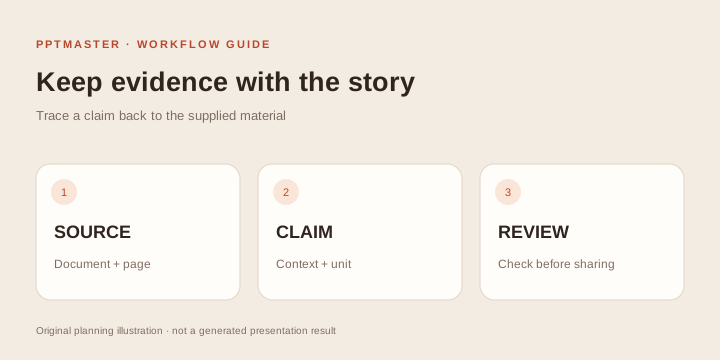
Original planning illustration: teaching claims should remain connected to their evidence.
Acceptance: Check definitions, exceptions and the order in which terms are introduced. Ask another educator to follow a representative segment. Test animation and media on the teaching device, and check whether the deck remains useful when printed or shared without the live explanation.
Tradeoff: A slide Skill does not automatically provide assessment, learner tracking or a full course platform. Browser interactivity also requires an accessibility and delivery check suited to the actual lesson.
6. One story delivered as both web and PowerPoint
Task: Share a browser version publicly and hand an editable deck to a colleague. Required deliverable: Two independently usable outputs. Primary decision: Which parts must stay consistent, and which can differ by format?
Start with Both formats. One candidate is Huashu Design: its current documentation describes HTML presentation and editable PPTX export, while noting that complex visuals may remain images. Verify the actual objects and both export paths before committing to a design. Frontend Slides Editable is an HTML authoring/editing workflow; its current Skill does not provide PPTX export, despite the registry’s original dual-format label. Likewise, PowerPoint Fancy Design packages full-slide images in PPTX. Neither is a substitute for a native-editable PowerPoint handoff.
Use a shared source outline and fact list. Ask for an explanation of how fonts, motion, notes and diagrams map between formats. Avoid relying on an interaction in HTML that has no intelligible static counterpart in PowerPoint.
Acceptance: Inspect each artifact separately. Change a text object in PPTX, present the HTML on the target browser, compare factual content and verify that images and references are present in both. Do not approve the second format solely from the first format's preview.
Tradeoff: Dual-format support adds another delivery contract to review. If only one format will be used, choose and validate that output first.
How to evaluate a gallery example
A gallery tells you what an author intends a workflow to produce. It does not demonstrate how the project handles your source or prove that every object is editable. Record the project, style identifier, source type and export format behind an example. Then test the requirement you actually care about with your own small, approved source.
The site credits Hugo He's upstream examples separately from website exports. Keep that distinction when showing a prototype to a colleague: a design reference is useful, but it is not your completed project or a measured result.
Turn a scenario into a selection brief
For any of these tasks, write down the audience, source, required format, mandatory editing operations, presentation environment, privacy constraints and acceptance reviewer. Pick two candidates and test the same small source in each if comparison is necessary. Keep the rubric stable; otherwise you will end up comparing different tasks and styles.
For role-specific guidance, read who PPT Skills are for. For setup and validation, follow the PPT Skills installation tutorial. To inspect the complete catalog and source links, return to PPT Skills.
Sources and scope
Route classifications and project descriptions adapt the many-ppt-skills source snapshot under CC BY 4.0, checked October 18, 2026. Linked project repositories and Slidev documentation own their current capabilities. These are suggested briefs and acceptance criteria, not completed customer case studies or a runtime benchmark.