

6 slides
A focused update
One cover, four topic slides and one source-reference table. Choose this for a narrow question with a few important findings.
PDF to presentation
Turn one text PDF into 6 or 8 editable PowerPoint slides. Keep source page references, choose English or Chinese, and make the final edits in your presentation editor.
This AI workflow summarizes and reflows your document into a selected style. It does not reproduce the original PDF layout.
Source excerpts retain the PDF’s original wording. No translation.
Sign in to upload securely. Your style, slides and language stay selected.
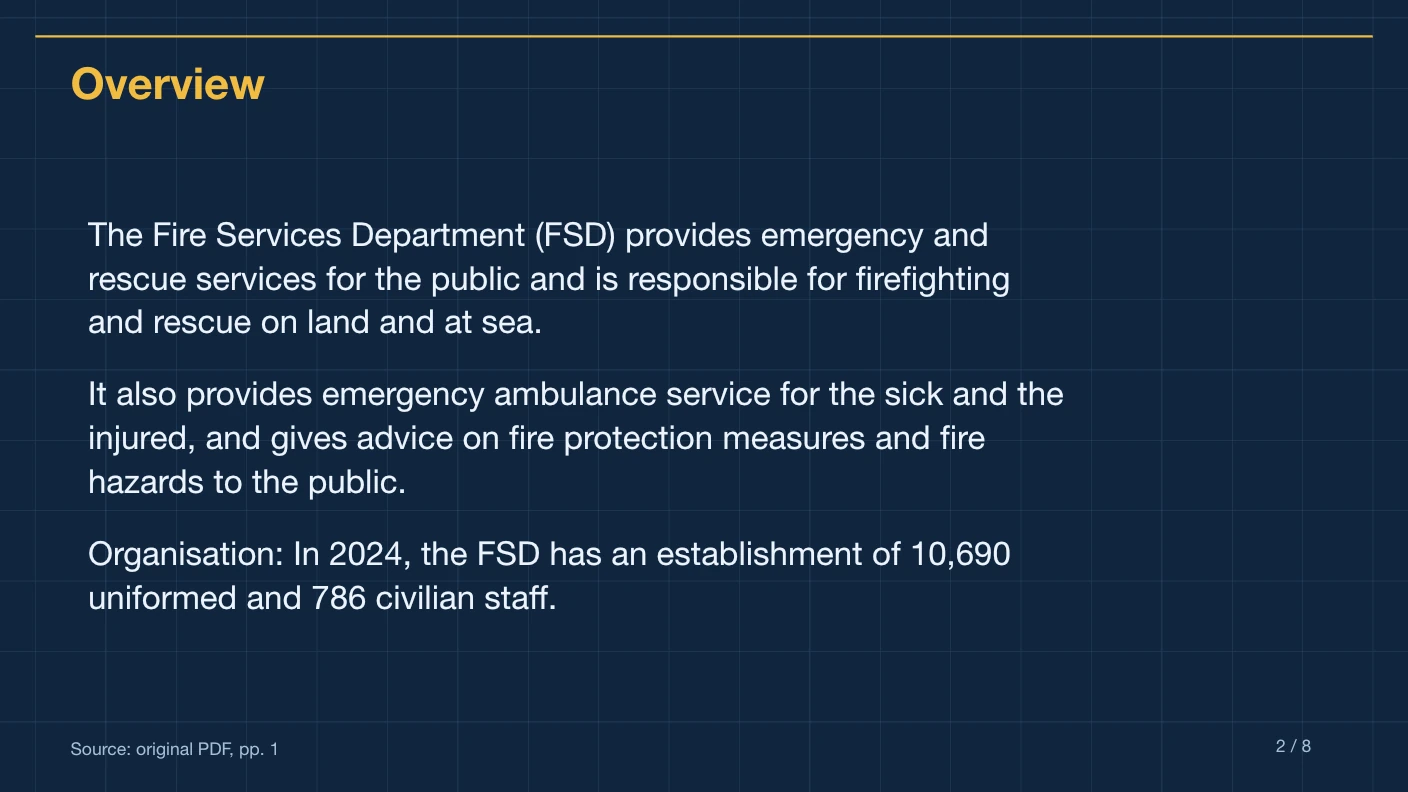
Website export example · Technical Blueprint
An eight-slide English summary of the public Fire Services factsheet. Your uploaded PDF creates a separate presentation.
Source → presentation
Compare the original factsheet with its editable PowerPoint summary. These are existing website export examples, separate from your own results and the open-source project’s design gallery. The PDF copies below are the versions used for these examples.
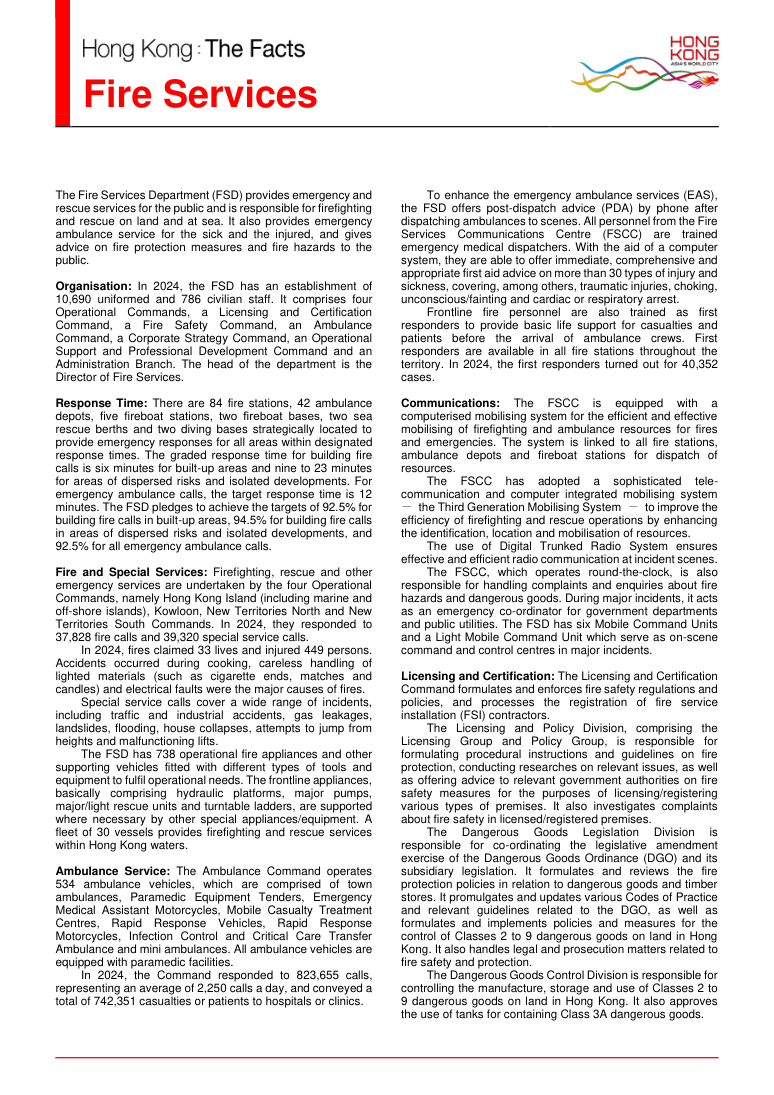
Website export example · Technical Blueprint
An eight-slide English summary of the public Fire Services factsheet. Your uploaded PDF creates a separate presentation.
Native text and table, on-slide references and source excerpts in notes. Choose a different style in the workspace before generating.
Want another visual style? Browse the six available export styles. Changing the example language here only changes this demonstration. Your generation settings stay in the form above.
Keep the evidence
On-slide references point back to physical PDF pages. Speaker notes include supporting passages, so you can check the context behind a summary. This is source traceability, rather than an APA citation formatter or an automatic bibliography.
“In 2024, the FSD has an establishment of 10,690 uniformed and 786 civilian staff.”
Source page 1 describes a staffing establishment, which is not a confirmed headcount of employees in post. Keep that distinction when you review a summary, and inspect its source excerpts in PowerPoint Notes.
AI checks can miss errors. Verify dates, units, actual results and forecasts before using any AI-generated presentation for an important decision. Read the source review guide for a practical checklist.
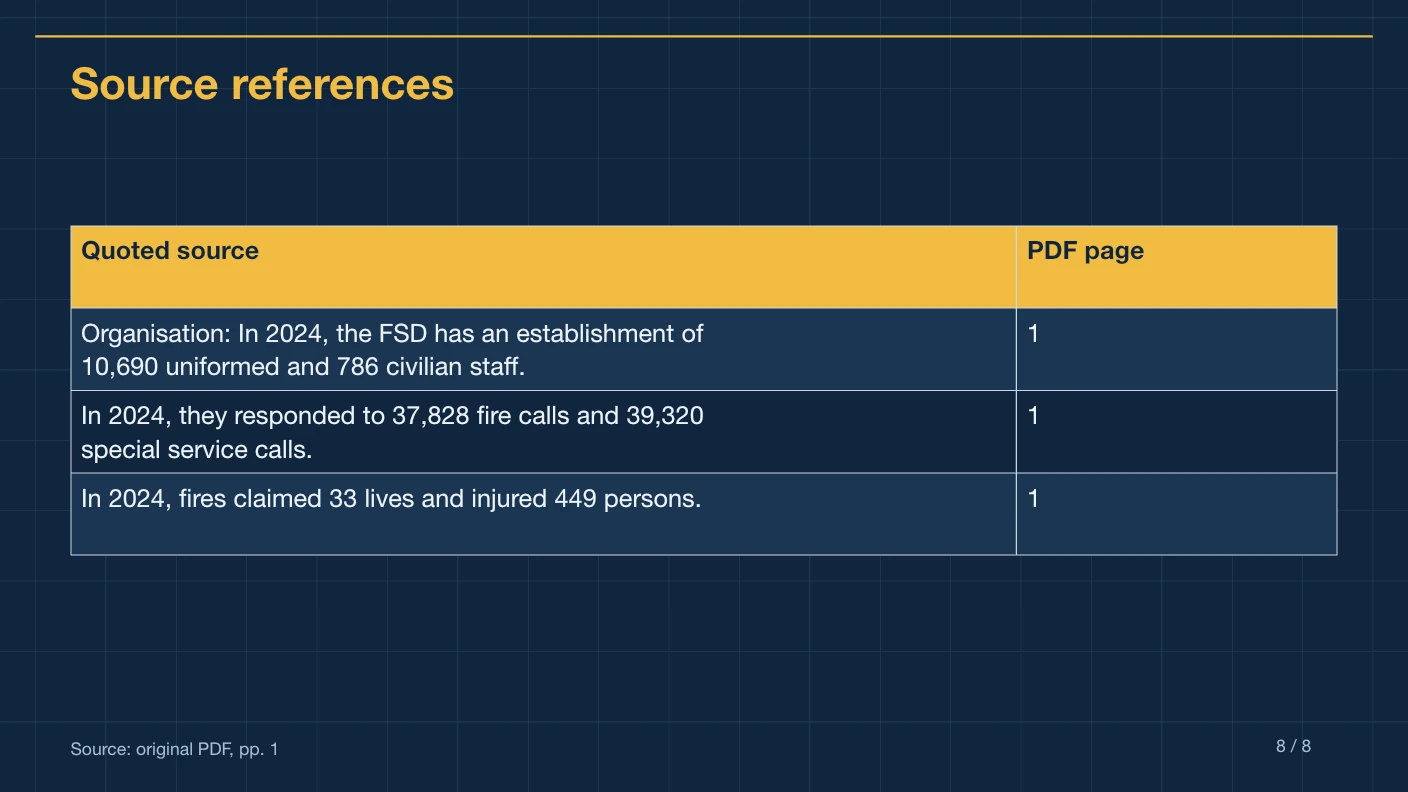
A PDF to PPT AI workflow condenses a document into a presentation. The selected total includes the cover and final source-reference table; it does not mean one slide per original PDF page.
6 slides
One cover, four topic slides and one source-reference table. Choose this for a narrow question with a few important findings.
8 slides
One cover, six topic slides and one source-reference table. Useful when the document supports more distinct topics; it still cannot include every detail.
English or Chinese
Keep names, reporting periods and numerical qualifiers clear. Selected excerpts retain the source wording; review them in their original context before sharing.
Suggested instruction for your own PDF, not the prompt used for the public example: “Prepare a briefing for colleagues who have not read this report. Focus on the main findings and source-supported risks. Retain the reporting periods, units and qualifications.”
Add optional instructions in the full PDF workspace. A source PDF is still required. Instructions guide emphasis; they do not add web research or supply missing evidence.
Choose one English or Chinese PDF with selectable text, up to 10 MB and 20 source pages. Sign in before uploading your private file.
Select a style, the PDF’s language, and exactly six or eight slides. Source excerpts retain their original wording; translation is not included. For audience-specific instructions, use the full workspace.
The AI selects and groups complete source excerpts, then reviews them against the PDF. Source references, numerical support, text length and slide count are checked before export.
Open the PPTX in your presentation editor. Check important claims against the cited pages and speaker notes, then refine the native text and table before presenting.
Read the PDF preparation guide if copying a paragraph produces scrambled text.
Files are processed privately on our service; extracted text is sent to EvoLink for AI processing. Review the privacy policy before uploading sensitive material. Compare presentation packages for successful-generation pricing. Failed or rejected jobs return their reserved generation allowance; this is not an automatic cash refund of the package purchase.
What stays editable
Review a focused summary in a consistent template, then edit the native text and data table.
Source page references on slides and supporting excerpts in notes help you check important claims.
Original source excerpts and physical PDF page numbers appear in a native PowerPoint table. Complex PDF charts and artwork are not reconstructed.
Headings and summary text remain native PowerPoint objects, ready for review and revision.
One English or Chinese text PDF, up to 10 MB and 20 pages, summarized into exactly 6 or 8 slides.
FAQ
This tool summarizes and rearranges supported PDF content into a fixed presentation style. It does not copy each source page or preserve the original artwork. Use it for a shorter briefing; use a layout-preserving converter when every original page must look the same.
Six means one cover, four topic slides and one source-reference table. Eight means one cover, six topic slides and one source-reference table. The selected total is checked before export; more slides allow more themes, not unlimited coverage of the source.
A text PDF is required. In the full workspace, optional instructions can describe your audience and choose priorities within that source. This workflow does not browse the web for research or invent evidence that is missing from your document.
The references identify original PDF pages and supporting passages in speaker notes. They help you verify the summary. They are not an APA, MLA or Chicago citation formatter; add any required academic references in your presentation editor.
One English or Chinese text PDF, up to 10 MB and 20 source pages, summarized into exactly 6 or 8 slides in a fixed 16:9 template. OCR, custom templates, original-layout reconstruction and merged shareholder tables are outside this initial scope.
The exported PPTX contains native text boxes and a native data table. Source page references appear on slides, with supporting excerpts in speaker notes. Complex charts and original PDF artwork are not reconstructed.
One-time presentation packs cost $4.90 for one, $12.90 for three, $39.90 for ten or $89.90 for twenty-five. Monthly and annual plans provide a monthly allowance of 3, 8 or 18 presentations. Pack allowance does not expire; unused subscription allowance expires each month. See Pricing for billing totals and cancellation terms. A failed job returns its reserved allowance with its original expiry.
The service checks source references, numbers, page count and text length, then uses a separate source-only AI review. Uncertain or conflicting claims block export. AI review is imperfect; check the cited source before using a deck for important decisions.
The initial service uses Sonnet 4.6 through EvoLink for content and factual review. PowerPoint layout and export use a fixed template rather than an open-ended agent.
Uploaded files are stored privately and processed on our service. Extracted PDF text is sent to EvoLink for model processing. The website sends your private PDF directly to the conversion service; downloads require owner access. Source PDFs are scheduled for deletion after 24 hours and generated files after seven days; see the Privacy Policy for cleanup timing.
Create a concise, cited summary in a fixed template, then review and edit the PPTX.