PPT Master Installation: Python and First PPTX
Install Hugo He’s PPT Master Skill with Git and Python, verify dependencies, connect your Agent and prepare a first editable PPTX with a review checklist.
PPT Master by Hugo He is an open-source presentation workflow that runs through an Agent with file and tool access. It supports broader authoring and editing tasks than a fixed online PDF converter. This guide explains a repository-based setup, a first source-based brief and the checks needed before handing off the PPTX.
This project is separate from PPTMaster at pptmaster.net, an independently operated online service. For the website's upload workflow, use the PPTMaster online tutorial. This article concerns the upstream project and was checked against its documentation on October 18, 2026.
If you have not chosen this project yet, start with the general PPT Skills installation and selection tutorial or compare the 227-entry directory. This walkthrough is specifically for Hugo He’s repository and Python workflow.
1. Prepare the environment
The upstream README specifies Python 3.10 or later and an Agent capable of working with files and tools. Use an IDE Agent or a CLI Agent you already understand. The Agent needs to read the project, follow its workflow and run the required scripts; an ordinary chat page without that access is a different environment.
For the clone route you also need Git. Confirm the basic tools in a terminal:
python3 --version
git --version
On Windows, the installed Python launcher can differ. Follow the project's Windows installation guide for the appropriate commands and PATH setup. Choose a folder where you can keep the source files and finished projects.
A local workflow can still call remote model, search or image services. Review the Agent's provider configuration and any optional image backend before supplying private material or starting paid requests.
2. Clone the repository and install dependencies
The README's repository setup is:
git clone https://github.com/hugohe3/ppt-master.git
cd ppt-master
Using a virtual environment keeps the Python dependencies separate from other work. For macOS or Linux, one conventional setup is:
python3 -m venv .venv
source .venv/bin/activate
python -m pip install -r requirements.txt
For Windows PowerShell, after the same clone and cd ppt-master steps, use the environment’s Python executable directly; activation is optional:
py -3 -m venv .venv
.\.venv\Scripts\python.exe -m pip install -r requirements.txt
Check that py -3 --version is at least 3.10. If your machine uses python instead of py, use that verified interpreter to create the environment. The clone and requirements file come from the upstream project; the virtual environment is a standard isolation choice for this tutorial.
Confirm the installation from the project root (macOS/Linux):
python -m pip check
python skills/ppt-master/scripts/source_to_md.py --help
On Windows, replace python with .\.venv\Scripts\python.exe. A successful check prints no broken requirements and the converter’s help text. It confirms Python dependencies and the import command, not Agent activation or successful deck generation.
Keep the working directory in mind: the requirements command belongs in the cloned project folder containing requirements.txt. Do not run it in an unrelated directory after copying only the first line of a setup reference.
The project also documents a ZIP download and Skill marketplace installation. A marketplace fetch can install the Skill files without installing the Python dependencies. Follow the complete current instructions for the installation route you choose, rather than combining pieces from different routes.
Check which Python the Agent will use
After activating the environment on macOS/Linux, run:
python -c "import sys; print(sys.executable)"
It should point inside this repository's .venv. On Windows, the explicit .\.venv\Scripts\python.exe commands already select that interpreter. Tell the Agent which interpreter passed the installation checks. A working pip in one terminal does not establish that another terminal or Agent tool uses the same environment.
If installation fails, retain the first error and check the verified Python version, active interpreter, project directory and current requirements file. Install route-specific tools only when the chosen workflow calls for them. Do not assume that a failed optional conversion means native PPTX authoring is unavailable, or that a successful requirements install proves all routes are ready.
3. Point your Agent at the correct workflow
Open the cloned ppt-master folder in an IDE Agent, or launch your CLI Agent from that folder. The current Skill entry is skills/ppt-master/SKILL.md. Ask the Agent to read it and follow the route selected for your task.
The entry file delegates to specific workflows. Creating a new deck, editing an existing native PPTX, creating a template and image-to-PPTX work have different procedures. Let the current Skill select its documented route. Copying an old export command from a blog can bypass required checks or use an obsolete script path.
A useful setup check is to ask the Agent to identify:
- The Skill entry file it read and the active workflow for your request.
- The required tools that are available or missing.
- The source paths and final format you want.
- Any provider configuration or cost that needs attention before execution.
The upstream workflow includes an attribution/integrity guard and a prescribed load order. Follow its result and documentation; do not ask the Agent to bypass a failed guard or patch third-party files just to proceed.
4. Supply a small, representative source
For the first attempt, use a short public or approved document. The upstream README describes source files under projects/, and the current workflow determines how it imports and processes them. Provide an explicit path so the Agent can confirm which file it is reading.
For a repeatable first exercise, download this fictional project brief. Create projects/team-review/sources/ inside the cloned repository and save the file there as review.md. Open that file and confirm that it starts with “Fictional project review” before continuing. It contains illustrative facts for a tutorial, not customer data or real performance claims.
A suggested request is:
Use PPT Master for projects/team-review/sources/review.md.
Make a three-slide editable PowerPoint for our internal project review:
evidence, unresolved questions, proposed decision.
Use native editable text and a simple editable status table.
Start with an outline and a representative content-slide preview.
Keep factual claims grounded in the supplied report.
Preserve dates, units, limitations and the distinction between plans
and completed work. Tell me if a required fact is missing.
Follow the current Skill workflow and inspect the final PPTX.
The path matches the saved exercise file above. For your own work, replace it with the actual source path and ask the Agent to confirm that it can read the file. The prompt above is a proposed brief, rather than a record of a generated result.
If you already have a company PPTX to reuse, explicitly request the project's documented editing/template route and provide both the deck and new material. Ask which pages and objects may change. Template handling deserves a small pilot before applying it to a large deliverable.
5. Approve the narrative and visual direction
The documented default flow confirms a design specification before full authoring. Check audience, goal, page count, source coverage and style. For dense material, review a content page containing the hardest object, such as a chart or diagram; a cover does not test content layout.
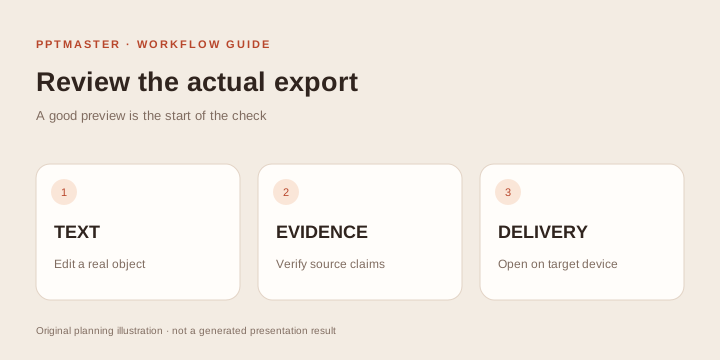
Original acceptance illustration for the authoring workflow.
The project also documents an explicitly requested quick mode. That mode changes the interaction and preview workflow. For a first attempt, use the reviewable default rather than assuming every mode produces the same intermediate artifacts. Consult the current getting-started guide for its behavior.
The gallery can help communicate a direction, but its examples are not a guarantee that your source will produce an identical layout. The site's Heatline example belongs to Hugo He's upstream gallery and uses a fictional company with illustrative business figures.
6. Inspect the native PowerPoint export
The upstream project documents native-object output, charts/tables, template workflows and other capabilities. Test the specific capability you need in the output, using your target editor:
- Edit a heading and a paragraph. Check text reflow after the change.
- Select the important diagram or shape and inspect whether the intended parts are editable.
- If native charts or tables are required, test their data or cells in the final file. Do not infer this from an on-screen picture.
- Check notes, transitions or narration only when requested and included by the selected route.
- Compare every important claim with its source, especially numbers, dates and limitations.
- Present the file on the device and PowerPoint-compatible application the recipient will use.
The export and its source files should travel together when future revisions matter. Keep assets, source material and a note of the version and workflow used. Font and rendering differences between applications can still require manual adjustment.
What to return with the first PPTX
Ask the Agent for the exact final PPTX path, retained authoring files, source path and a short list of checks actually performed. The project's selected workflow determines the filenames; this tutorial does not prescribe an export script to skip that workflow. Open the returned file itself, rather than approving a screenshot from an intermediate stage.
For the fictional exercise, a passing factual review keeps 12 completed interviews distinct from eight scheduled ones, uses 12 as the denominator for the five participants needing help and labels the proposed setup change as a proposal. A passing editing review lets you change the heading and the status table in the target application. If a test fails, record the actual object or claim, revise a copy and repeat that check.
Keep a source/version note with the delivered files so another person can reproduce the work. Use the workflow handoff scenarios to define maintenance responsibilities for recurring decks.
Common setup and handoff problems
| Problem | First check | Practical response |
|---|---|---|
requirements.txt cannot be found | Terminal working directory | Return to the cloned project root and follow that installation route |
| Agent writes generic slides | Whether it read the real Skill and route | Point it to the current entry file and confirm its selected workflow |
| Dependency error during export | Python environment and route-specific requirements | Use the project’s documented dependency instructions |
| The wrong parts of a company deck change | Edit scope and selected template/editing route | Pilot a copy with explicit pages and allowed changes |
| A feature differs from this article | Current README and Skill version | Follow current upstream docs and retain a version note |
| Output looks right but fails editing | Actual PPTX objects and target editor | Test representative objects and revise the workflow requirement |
Updates, costs and licenses
The current README documents python3 skills/ppt-master/scripts/update_repo.py for clone-based updates. Review changes before updating a working production project, and retain a recoverable copy of sources and outputs. ZIP installations have a different update process because they lack Git history.
The repository is MIT-licensed, but dependencies and optional assets can have their own terms. Its README specifically calls out the optional PDF converter's PyMuPDF license and third-party icon notices. Check the applicable notices before redistribution. Model and image service costs depend on the providers you configure; a software license does not imply free inference.
To compare this with other native PPTX, HTML and dual-format routes, return to the PPT Skills directory. For task planning, see PPT Skills use cases and who these workflows fit.
Sources and scope
This guide is based on the PPT Master README at the checked commit, its Skill entry and linked project documentation, checked October 18, 2026. On October 18 we checked a fresh macOS Python 3.11 environment: root requirements installed, pip check passed and the source-converter help command ran. We also converted a repository-owned example PDF to Markdown locally. Agent execution and a newly generated PPTX were not tested; these setup checks are not an end-to-end quality benchmark.